
QProgressBar是进度条控件,可以让用户直观地了解任务的完成程度。
它支持水平和垂直两种显示方向,可以根据界面布局需求选择合适的方向。
1. 效果演示
实现了三个进度条效果:文件下载、文件拷贝、网络请求,如下: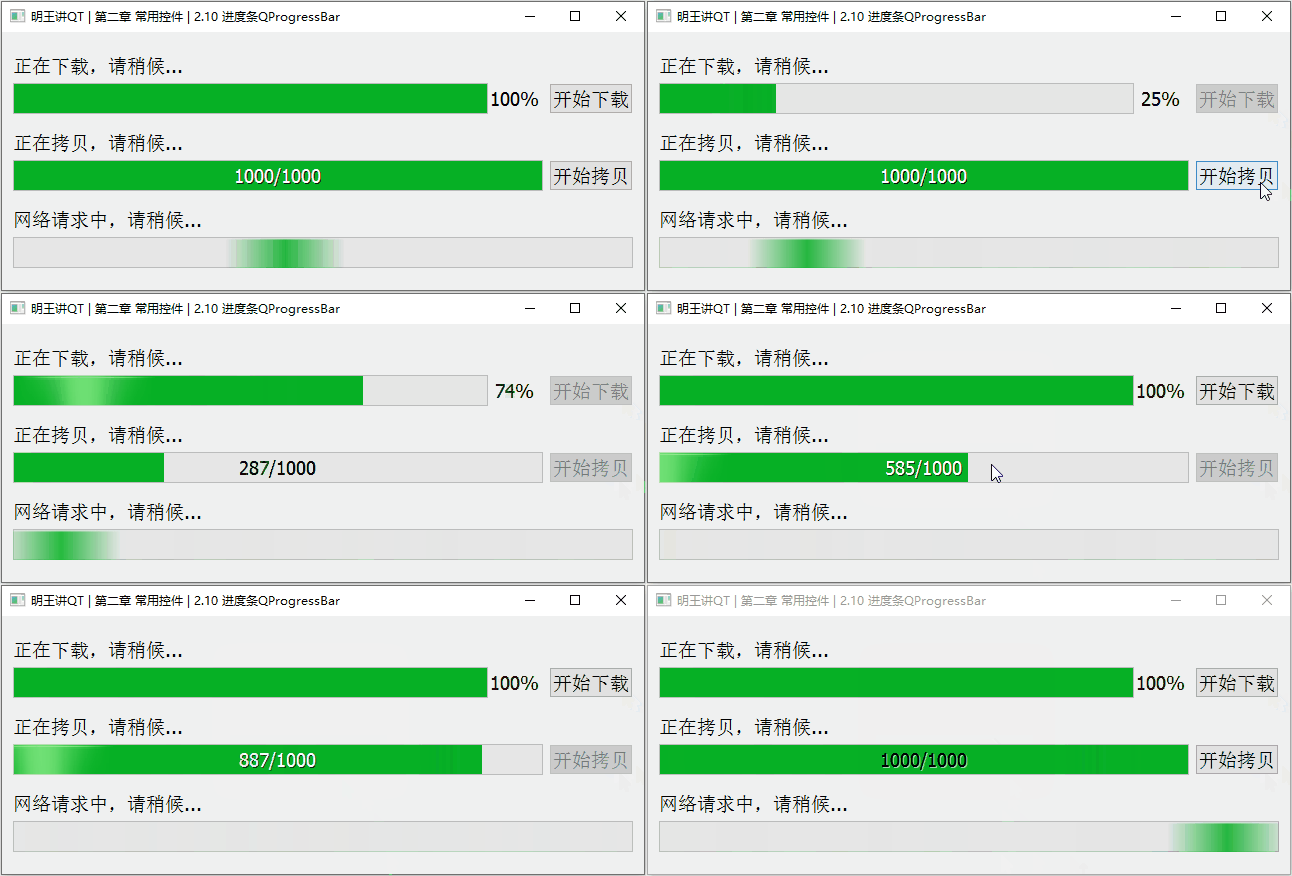
2. 属性和方法
QProgressBar有很多属性,完整的可查看帮助文档。这里列出常用的属性和方法
2.1 值
与值相关的属性包括:当前值、最大值、最小值
// 获取和设置当前值
int value() const;
void setValue(int);

// 获取和设置最大值
int maximum() const;
void setMaximum(int);

// 获取和设置最小值
int minimum() const;
void setMinimum(int);

// 一次设置最大值和最小值
void setRange(int min, int max)

// 复位当前值
void QProgressBar::reset()
2.2 方向
进度条有水平和垂直之分
只需修改其orientation属性,就可以将进度条的外观变为方向修改为水平或者垂直的
// 获取和设置滑动条的方向
Qt::Orientation orientation() const
void setOrientation(Qt::Orientation)其中,Qt::Orientation是一个枚举类型,有两种取值:Qt::Horizontal、Qt::Vertical
2.3 外观
- 设置进度条的文本是否显示
// 获取和设置进度条的文本是否显示
bool isTextVisible() const
void setTextVisible(bool visible)- 设置文本的显示位置
Qt::Alignment alignment() const
void setAlignment(Qt::Alignment alignment)- 文本的显示格式
// 当前进度的显示格式,有三种:
// %p:百分比
// %v:当前值
// %m:最大值
QString format() const;
void setFormat(const QString &format);

// 复位格式
void resetFormat()- 外观反转
// 获取和设置是否外观反转
bool invertedAppearance() const
void setInvertedAppearance(bool invert)
通常,进度条进度的增长方向从左到右。而外观反转,将进度条的进度增长方向修改为从右向左
2.4 信号槽
// 当进度条的值改变时,发射该信号
void valueChanged(int value)
3. 从零实现
从零写代码实现整体效果,以演示进度条的属性以及信号槽的用法
3.1 布局
在UI设计师界面,拖拽对应的控件,修改显示的文字、控件的名称,然后完成布局
布局完成效果如下: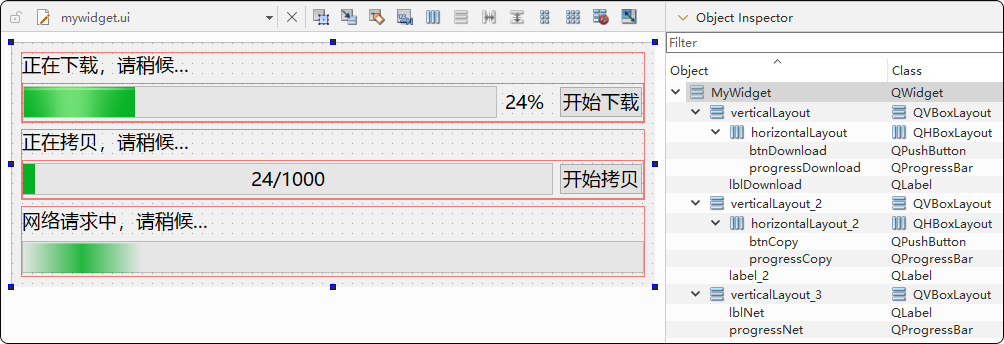
控件属性设置
- MyWidget:
font->Point Size属性修改为14 - lblDownload、lblCopy、lblNet:
sizePolicy->Vertical Policy属性修改为Fixed - progressCopy:
maximum属性修改为1000,alignment->Horizontal属性修改为AlignHCenter,format属性修改为%v/%m - progressDownload:
minimum和maximum属性都修改为0,此时进度条会显示一个繁忙指示,而不会显示当前的值
3.2 代码实现
首先,在mywidget.h中定时器和槽函数,如下:
#include <QTimer>

class MyWidget : public QWidget {
private slots:
    void onBtnDownloadClicked();
    void onDownloadTimeout();

    void onBtnCopyClicked();
    void onCopyTimeout();

private:
    QTimer* downloadTimer;
    QTimer* copyTimer;
};然后,来到mywidget.cpp中实现这几个槽函数,如下:
#include <QMessageBox>

void MyWidget::onDownloadTimeout() {
    int currentValue = ui->progressDownload->value();

    if (currentValue >= ui->progressDownload->maximum()) {
        downloadTimer->stop();
        ui->btnDownload->setEnabled(true);
        QMessageBox::information(this, "提示", "文件下载完成!");
    } else {
        ui->progressDownload->setValue(ui->progressDownload->value() + 1);
        qDebug() << ui->progressDownload->value();
    }
}

void MyWidget::onBtnCopyClicked() {
    ui->btnCopy->setEnabled(false);
    ui->progressCopy->reset();
    copyTimer->start();
}

void MyWidget::onCopyTimeout() {
    int currentValue = ui->progressCopy->value();

    if (currentValue >= ui->progressCopy->maximum()) {
        copyTimer->stop();
        ui->btnCopy->setEnabled(true);
        QMessageBox::information(this, "提示", "文件拷贝完成!");
    } else {
        ui->progressCopy->setValue(ui->progressCopy->value() + 1);
        qDebug() << ui->progressCopy->value();
    }
}最后,在构造函数中创建定时器,并关联信号槽,如下:
MyWidget::MyWidget(QWidget *parent) : QWidget(parent), ui(new Ui::MyWidget) {
    ui->setupUi(this);

    this->setWindowTitle("明王讲QT | 第二章 常用控件 | 2.10 进度条QProgressBar");

    // 1. 下载
    downloadTimer = new QTimer(this);
    downloadTimer->setInterval(50);

    connect(ui->btnDownload, &QPushButton::clicked, this, &MyWidget::onBtnDownloadClicked);
    connect(downloadTimer, &QTimer::timeout, this, &MyWidget::onDownloadTimeout);

    // 2.拷贝
    copyTimer = new QTimer(this);
    copyTimer->setInterval(10);

    connect(ui->btnCopy, &QPushButton::clicked, this, &MyWidget::onBtnCopyClicked);
    connect(copyTimer, &QTimer::timeout, this, &MyWidget::onCopyTimeout);
}
4. 点赞、获取源码
看到这里的小伙伴,去B站给明王一个【免费的点赞】吧,你的支持,是我持续更新优质内容的动力,感谢~
源码下载地址
链接: https://pan.baidu.com/s/1MM_iR73f-rcbeFgjpOUcmA
提取码: ming